How to Connect to Template 2.1.0 in Data Studio
After establishing successful connection between GA4 datasource and Data Studio. Please raise a ticket to Run3tv team to provide latest version of Data Studio Template [2.1.0].
Steps to connect to Template 2.1.0
-
Run3TV shall provide a Data Studio Report template for you to either create further copies or to modify the report.
-
Open the GA4 2.1.0 Template link provided by Run3TV.
-
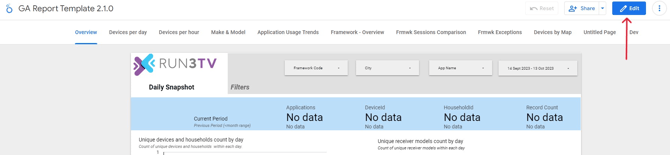
Click on ‘Edit' option in the top right-hand corner.

-
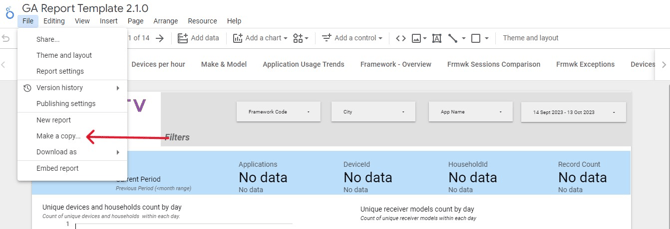
On the menu bar, select File, then select Make a copy option.

-
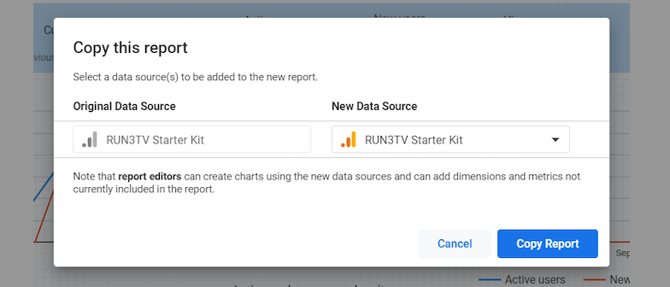
In the pop-up window, select your new data source and click on copy report.

-
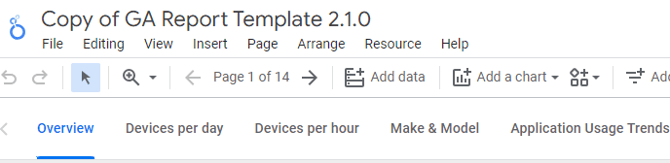
A copy of report is generated. Click on the title and rename accordingly (as shown below).

-
Save this newly created copy of GA4 2.1.0 Template (v1) by renaming it as Original GA4 2.1.0 Template (v1) and store it, and use this copy of Original GA4 2.1.0 Template (v1) to edit.
-
On Menu bar, click on File -> Report settings.

-
On right hand side, in report settings window.
-
Click on Data source → Select Data Source. Click on the desired data source from the drop down list.
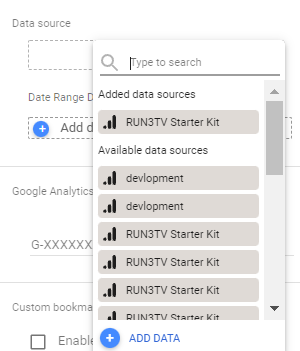

-
A pop-up is displayed → Select Add to Report option.

-
Now your data source is added to your report, close the report settings menu.