Google Tag Manager’s preview and debug mode allows you to browse a site on which your container code is implemented as if the current container draft was deployed, so that you can test a container configuration before it is published. Your previewed site is connected to Tag Assistant so that you can inspect which tags fired and in which order.
NOTE: When using DEBUG NO data is stored in GA, hence no activities will be recorded into GA and therefore WILL NOT show in the data studio reports.
1. How to enable preview / debug mode :
The following procedure explains how to enable preview / debug modes in your current workspace:
-
Run your application locally. The Readme.md file provided as part of your release repo shows an example URL. In order to use your emulator URL, see section 2.(http://localhost:5001/run3tv-common/?wsURL=ws%3A%2F%2Flocalhost%3A5001&rev=03152021)
-
Click Preview in the top right corner of your workspace page. See the following link for assistance Google Tag Manager Set up.
-
This will open Tag Assistant page. Enter the URL from step 1 here. Select ‘Include debug signal’ option and then press Connect.
(Note: Some sites or pages might be broken by an additional debug parameter added to the URL. If so, you may need to uncheck the box Include debug signal in the URL)
-
Upon clicking Connect, your site will open in a new window. You can now minimize this window. Do not select ' Finish' option as this will shutdown the application.
-
Return to ‘Tag Assistant’ tab and click Continue to access the debug interface.
You now have ‘Tag manager’ connected to ‘Tag Assistant’. The Tag Assistant page displays all the relevant tags (Fired / Not Fired)
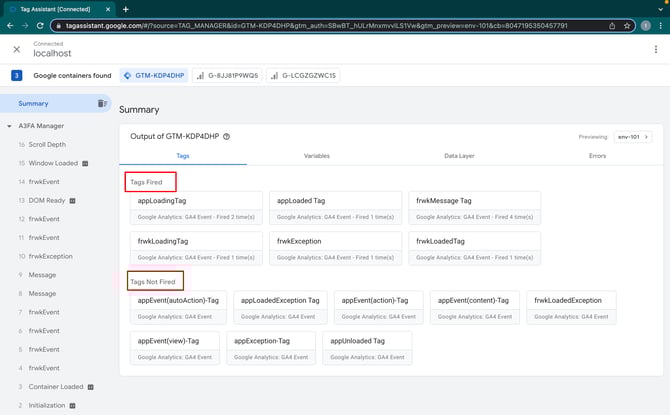

This concludes the connection process between ‘Tag Manager’ and 'Tag Assistant'.
The steps mentioned below are mainly for reference and may be required in certain cases.
2. How to enable preview / debug mode using Emulator URL
The following procedure explains how to enable preview / debug modes using emulator URL in your current workspace.
-
Install Tag Assistant Legacy & Tag Assistant Companion Google Plugins in your chrome browser.
Tag Assistant Legacy : [DEPRECATED] Tag Assistant Legacy - Chrome Web Store
Tag Assistant Companion :Tag Assistant Companion - Chrome Web Store -
Run your application locally and copy the emulator URL from your terminal.
-
Click Preview in the top right corner of your workspace page. See the following link for assistance 4. Google Tag Manager Setup [2.1.0].
-
This will open Tag Assistant page. Enter the URL from step 2 here. Select ‘Include debug signal’ option and then press Connect.
-
Upon clicking Connect, your site will open in a new window with an on-screen popup showing Tag Assistant connected.
-
Return to ‘Tag Assistant’ tab and click Continue to access the debug interface.
3. How to Add a new Application or Domain
To start a new debug session:
-
From your web browser, open the Tag Assistant activation page.
-
Click "Add domain".
-
Enter the URL of the page you would like to debug.
-
Click "Start".
-
Some sites or pages might be broken by an additional debug parameter added to the URL. If so, you can uncheck the box "Include debug signal in the URL".
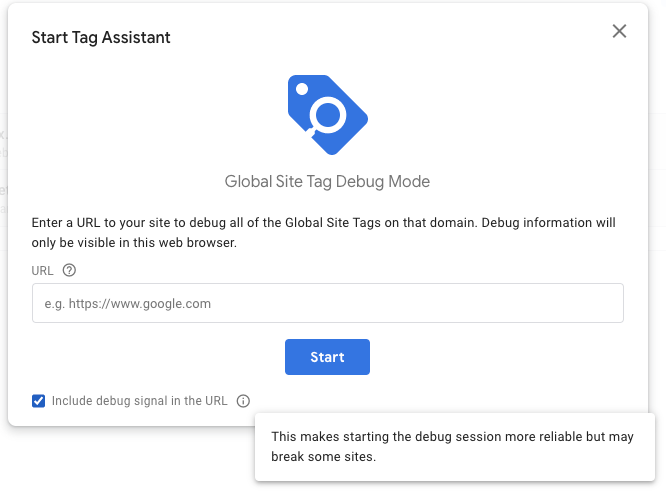

To resume an active or closed debug session, click the domain name from the "Active Domains" or "History" in the Tag Assistant home page.
Once enabled, a new window will launch for the page you entered, with the debug UI opening in the existing Tag Assistant browser window. The debug UI in the Tag Assistant window shows detailed information about your gtag() commands and hits, including how tags fired and what data is being processed. Debug information is not visible to your regular website visitors. The debug window will stay open and display debug information while you navigate within the same domain and as long as there is a global site tag on the page.
As you click through your website, the debug window will update information about how your tags are fired. You can use this information to see if a tag fired successfully, what triggered (or did not trigger) its firing status, and what network requests were made as a result of the tag firing.
Debug mode information :
The default Summary view shows an overview of events and tag information for the requested page. The left side of the screen displays a list of events. The Output section will display a card for each hit detected for the selected ID.
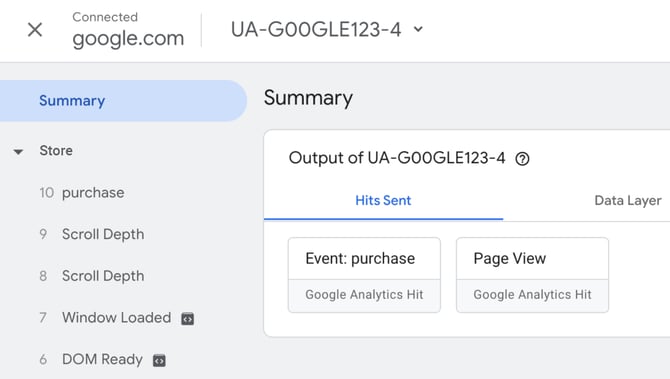

Events are grouped by the page where they took place. Click on a page title in the left navigation bar to view a page-level summary. A new page group is added to the top of the list as the user navigates to another page in the site that has a global site tag on the page.
Events appear in the order they were fired and are numbered accordingly. Events marked with a < > icon are built-in triggers that were emitted automatically when the global site tag loaded. Click on an event in the left column to view more detail.
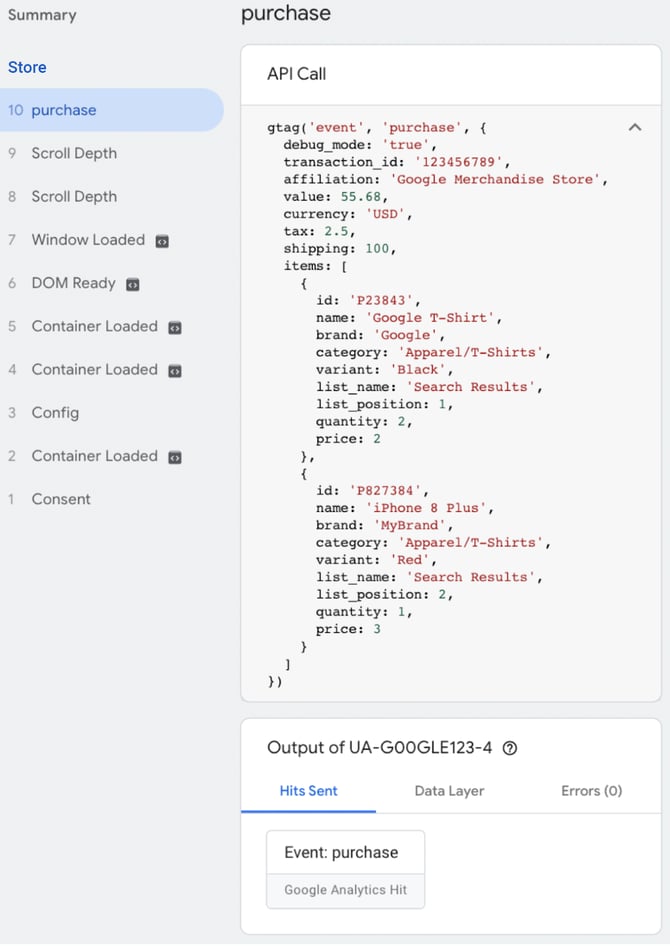

The API Call shows the JavaScript that was used to configure data for the event selected, which will be either a gtag() call or a datalayer.push() call.
Output will show where hits were sent, updates to the data layer, and any errors.
Hits detail
Hits Sent will show where a particular hit was sent, and what kind of hit it was.
Data Layer
The Data Layer tab shows values found in the dataLayer object. When Summary is selected, it will display the current state of the data layer, as well as the data that was pushed to the data layer for each event.
Controls
If multiple tag products or properties are detected, use the select menu to change to another product or measurement ID.
Note: Browser events may be applied to all containers, but the hits are filtered by the container that is selected.
To minimize the debug window, click __ in the floating window on top the page. The window reappears when the page is refreshed or the user navigates to another page. To stop debugging the domain, click X in the floating window. The page will reload with no debug window.
If the website window is closed, it can be relaunched by clicking Reopen in the debug window.
You can start a new session from the Tag Assistant home page. Click a domain listed in the Active Domains section (for active sessions) or the History section (for closed sessions).
4. How to share preview / debug mode
When preview / debug mode is enabled, the previewed container configuration and Tag Assistant debug interface are only visible from the same browser from where you activated preview and debug mode. You can share this preview with others with a custom-generated URL.
To share a preview of your workspace configuration with a colleague:
-
Click More Actions using Three dots icon at the top of the Tag Assistant debug interface and select Share.
-
In the Share debug session dialog, enter your target website domain and the tags to debug.
-
Copy the resulting preview URL from the indicated box.
-
Paste the copied preview URL into an electronic message and send it to a colleague. The preview URL lets the user connect to your site in preview mode and to view the Tag Assistant debug interface.
You can also share the current or older versions of a container from your workspace:
-
In the top navigation of your workspace, click Versions.
-
Find the version you would like to share, click More Actions using Three dots icon and select Share Preview.
-
In the Share Preview dialog, enter your target website domain (e.g. https://example.com/.)
-
Copy the resulting preview URL from the indicated box.
-
Paste the copied preview URL into an electronic message and send it to a colleague. The preview URL lets the user connect to your site in preview mode and to view the Tag Assistant debug interface.
5. How to exit preview / debug mode
To exit preview mode and stop debugging you can either:
-
Click Disconnect in the floating window on your previewed site.
-
Click the X in the upper left corner of the Tag Assistant debug interface.
-
Click Stop debugging on the Tag Assistant activation page.
Debug_mode event parameter
If you want to make the data visible in the DebugView even while the GTM Preview mode is disabled (and you don’t want to install the browser extension), you can add the debug_mode parameter to the events. To enable the parameter, you have to add the debug_mode to the GA4 tag and then enter any value (but “true” without quotation marks makes the most sense).
You have two choices where to include the debug_mode parameter:
-
In the GA4 configuration tag (then all the other events tags that are using it will also inherit the parameter)
-
Or only in certain GA4 event tags. In that case, the debug_mode parameter will be applied only to those tags and only those particular events will be displayed in the DebugView of Google Analytics 4
Let me show you how to do that with the GA4 Configuration Tag.
In Google Tag Manager, you can do that by opening the GA4 Configuration tag and adding the following parameter:

REFERENCES:
General background Information from Google on how to Use preview / debug mode
Once preview and debug mode is enabled, a new window will launch for the page you entered. The debug interface shows detailed information about your tags, including how tags fired and what data is being processed. The debug interface will only appear on the same browser that was used to enable preview mode, or for shared users, and is not visible to your regular website visitors.
Use the information in the debug interface to find out if tags and triggers fire properly and what data they pass to their respective services. As you click through your previewed website, the debug interface will update information about how your tags are fired. You can use this information to see if a tag fired successfully, and what triggered (or did not trigger) its firing status.
The top navigation bar lists options to access information about Tags, Variables, and the Data Layer, and the left navigation Summary bar shows a list of events.
-
Tags: Click Tags to see which tags fired and which tags did not fire. Click a tag to view the tag's properties and associated triggers. When an event is selected in the left column, the Tags tab will show the status of tags for that event.
-
Variables: The Variables tab will display detailed information about variables in the selected event, including the type of variable, the type of data returned, and the resolved value. Select an event in the left navigation to view the status of variables at the time the event fired.
-
Data Layer: The Data Layer tab will show the exact message as it was pushed to the data layer for the selected event, and what the data layer looks like after the message transaction is complete. Select an event in the left navigation to view the status of the data layer at the time the event fired.