The below Json file contains a pre defined collection of tags, triggers, variables and related configuration that installs in your container.
Download and save the below json file to import container.

-
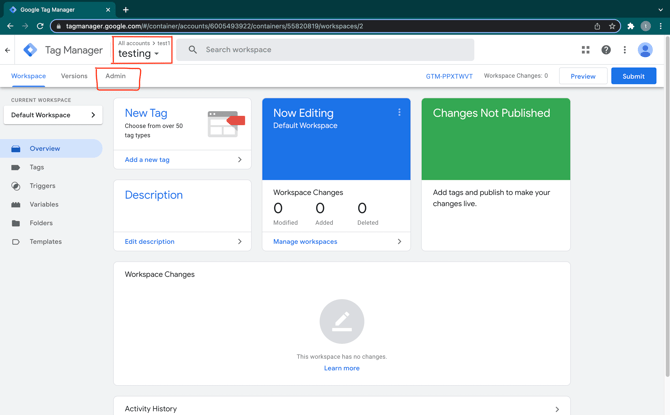
Log in to Google Tag Manager. In the top section, select the Account and Container you wish to continue and click Admin.

-
In the Container section, click Import Container.
-
Click Choose container file and select the Json file that you downloaded from this page.
-
Click on New in choose your workspace.
-
Click on Untitled Workspace and rename the new container.
-
Click on Click here to add description, add description to the container.
-
Save the workspace by selecting Save.
To add the file to an existing workspace:
a. Under Choose default workspace, click Existing.
b. Select the desired workspace.
8. Select Overwrite.
-
Overwrite will remove all your existing tags, triggers and variables, and will replace them with those in the imported container. A new container version will be created before the import.
-
To Merge, select whether you want to overwrite or rename conflicting variables, triggers and tags.
-
Overwrite conflicting tags, triggers, and variables: If a variable, tag, or trigger in the new container has the same name but the contents are different, overwrite the old one with the new one. (If the contents are the same, there is no conflict.)
-
Rename conflicting tags, triggers, and variables: if a variable, tag, or trigger in the new container has the same name but the contents are different, rename the new one. (If the contents are the same, there is no conflict.)
-
9 . A total of 44 Tags, 49 Triggers and 80 Variables are used in 2.1.0 then click Confirm.
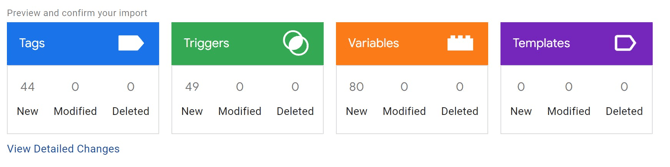

10. After clicking confirm a new container is added successfully to your Google Tag Manager.
To preview the Data coming from application and to know how the container works is mentioned in 6. Debugging using Live Preview in Google Tag Manager [2.1.0].
Setting Up Framework Stream Measurement ID Configuration to GTM :
To set up framework stream configuration to GTM,
-
Click on Tags which is at left hand side on Google Tag Manager homepage.
-
Search for frwk_ga4_configuration_tag (which is Google Tag) and click on it to open the tag.
-
A new screen with details of frwk_ga4_configuration_tag will be opened.
-
Replace the existing Measurement ID which appears in a frwk_ga4_configuration_tag with the newly created framework data stream measurement ID in 2. How to Add Google Analytics Data StreamID to your Application [2.1.0] .
-
Save the tag, by clicking on the save option at top right corner.
-
Then click save tag on the pop up which appears on screen.
-
Now, you have successfully completed framework stream configuration in Google Tag Manager